
Prepare before the first round
Start with party size, tier, desired difficulty and enemy family. Get a themed opposition outline and a target to compare it against, rather than assembling every planning note from scratch.
Prepare the pressure. Keep the choice.
Plan opposition, compare encounter pressure and adjust the composition before your next tabletop session. See the assumptions behind a directional estimate.
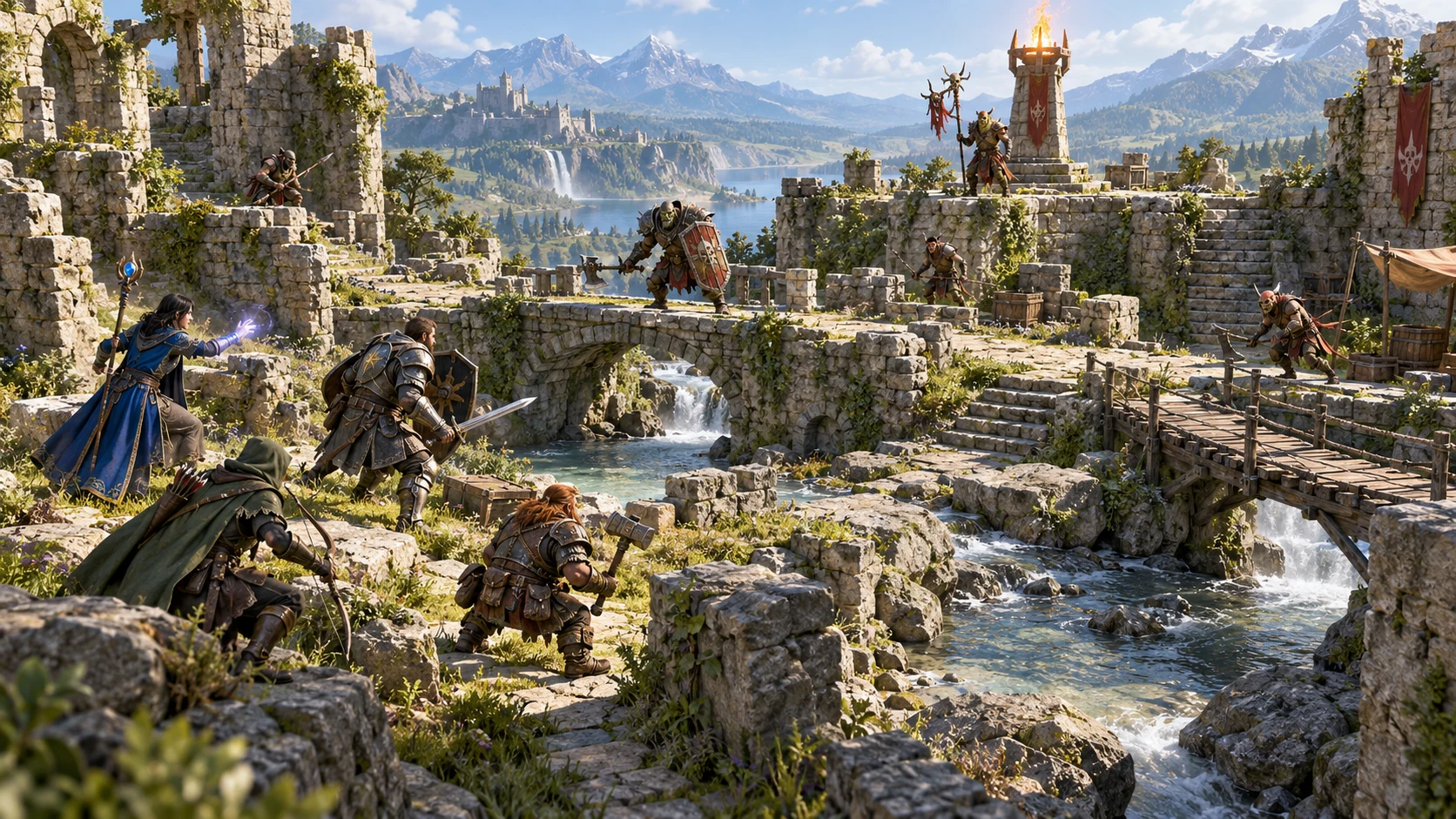
For the fight you want to prepare
Bring party, opposition and encounter context together. Use a transparent comparison to decide what needs attention before your next session.
Start with party size, tier, desired difficulty and enemy family. Get a themed opposition outline and a target to compare it against, rather than assembling every planning note from scratch.
Enter your own opponent groups and relative threat values. See how the composition compares with the party target, then edit counts or roles and recalculate.
Inspect weaker, target and stronger count-based variants side by side. Choose the displayed composition that suits your plans, remembering that rounding can leave small groups unchanged.
Hidden abilities, player decisions, luck and focus fire can change a fight. Use the estimate as a preparation aid, then review the actual rules, creatures and group you will play with.
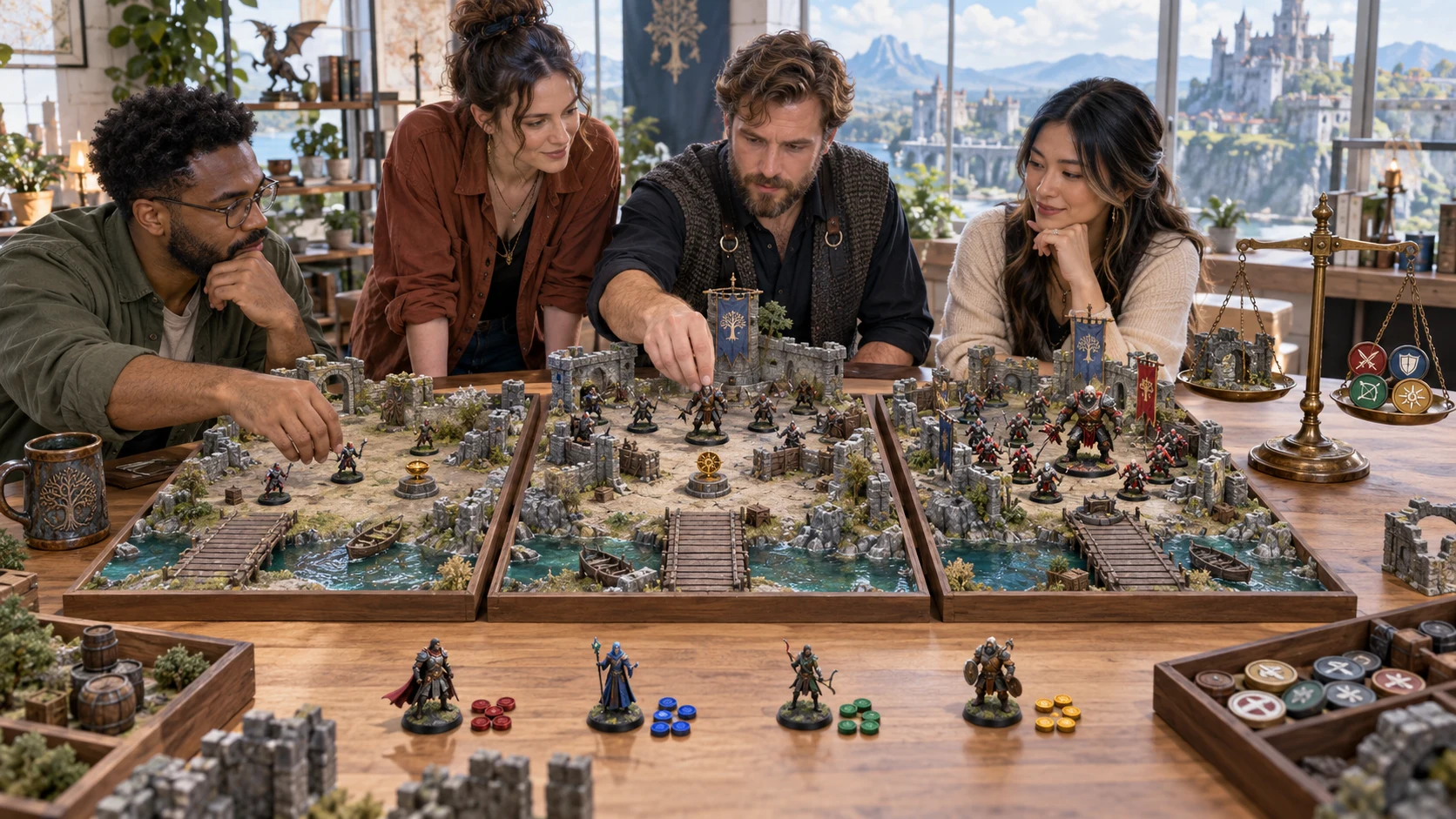
Compare before you commit
Review three count-based variants together. See what changes before choosing the version you want to prepare.
Use the comparison as a starting point, then adjust the encounter for your actual party and rules.
A clear planning journey
Keep the inputs and estimate visible, with focused controls rather than one open-ended prompt.
Quick gives you the core encounter choices and a repeatable seed. Deep adds party capability notes, resources and encounter context for a more deliberate review.
Generate themed opponent groups, or enter your own names, counts, roles, tiers and threat values. The result is a composition outline, not a complete creature stat block.
Compare relative threat with the target. Review party turns against opponent bodies, role coverage, terrain and objectives, plus warnings about volatility and uncertainty.
Change names, roles or counts and recalculate the edited composition. Inspect the actual variants, choose one and save or export your preparation.
What comes together
Organise the decisions around one encounter. A transparent estimate supports your review; it does not predict every round of combat.
Choose party size, party tier, desired difficulty and enemy family, with a seed for repeatable preparation. Start with a generated opposition outline rather than a blank page.
Record individual levels, party roles, healing, combat reach and spellcasting alongside resources, terrain, objectives, reinforcements and retreat. These provide review context, not a full simulation of character abilities.
Enter group names, counts, roles, tiers and relative threat values when you already have an encounter in mind. This is manual composition entry, not automatic creature-library or stat-block import.
Compare relative opposition threat with a target based on party size, tier, desired difficulty and resources. Threat units are planning values, not official challenge ratings or a guarantee of table difficulty.
See party turns compared with opponent bodies, role coverage and warnings about focus fire, bosses and uncertainty. Review terrain, objectives and retreat alongside the numerical estimate.
Review weaker, target and stronger variants that scale opponent counts. Rounding and minimum counts can make small compositions identical; inspect the actual counts before choosing.
Save validated designs and variants to your account, search by name and reopen them. Copy analysis, download structured JSON or print the comparison for your preparation notes.
Send the selected opposition composition and supporting encounter context with the required access. Review and tune creature statistics in Combat PRO; placeholder preparation values are not complete stat blocks.
Start simply. Add context where it helps.
Know which inputs drive the numerical estimate and which help you review the encounter around it.
Set party size from one to twelve, party tier, desired difficulty, enemy family and seed. Generate a themed starting composition you can inspect and revise.
Add individual levels, roles, healing, melee or ranged profile and spellcasting. These appear in capability summaries; they do not simulate character sheets or individual abilities.
Set resources, enemy-count preference, boss presence, terrain advantage, objective pressure, reinforcements, waves, time pressure, retreat, intended length and active sides. Review these alongside the estimate.
Party size, tier, desired difficulty and resources set the relative target. Other details add context and warnings. Threat units are planning values, not official challenge ratings.
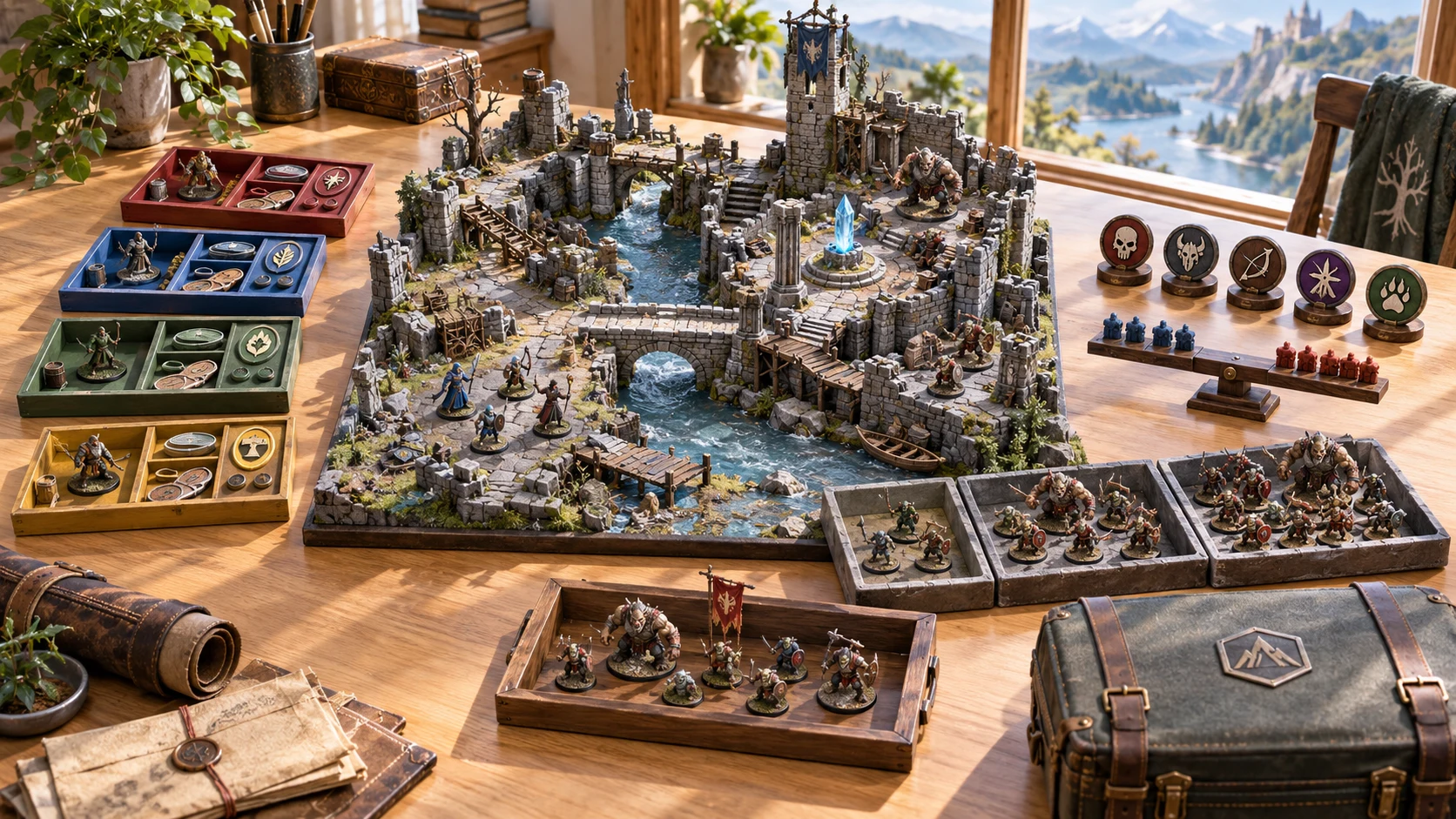
Preparation you can keep
Save designs and variants, copy the analysis, download structured JSON or print the comparison for your session notes.
Optional Combat PRO handoff sends selected preparation. Review and tune creature statistics there before play.
Make the next revision useful
Keep the encounter as deliberate groups you can review, and return to saved designs when they fit another session.
Adjust opponent names, roles and counts, then recalculate. Review the refreshed analysis and variants rather than assuming an old estimate still applies after a change.
For DM-entered groups, choose tier and threat values alongside the count. Use values consistently across your comparison and check the opponents’ real abilities in your chosen rules.
Save validated designs and variants to your VISINVOKE account, search by name and reopen them. Account saves require the connected session and entitlement.
Copy analysis, download structured JSON or print the comparison using your system print dialog. These are preparation exports, not a formatted publishing workflow or complete creature catalogue.
Useful estimates. Honest limits.
Keep actual creature rules, player choices and live encounter play distinct from a planning comparison.
Compare relative threat with a target. The tool does not calculate every spell, resistance, damage roll or tactical decision, and cannot guarantee table difficulty.
Variants scale group counts with rounding and a minimum of one. A solo or small composition can be identical across variants. Inspect the groups and adjust entered counts or threat values when needed.
Send selected preparation to Combat PRO with appropriate access. It carries identities, roles and context, with placeholder preparation statistics. Review AC, hit points, abilities and weapons there.
This product does not create a graphical map or run initiative, hit points, turns or damage. Those live functions remain in Combat PRO; related subscriptions and image credits are separate.
Choose access for your toolkit
Balanced Encounter Generator is a paid standalone generator, not an image-credit plan. Create a free account first, then review your selection and subscription.
Select Balanced Encounter Generator as your individual generator. A free account alone does not include paid access.
Choose a five-generator pack when you need other eligible standalone tools too. The pack buys selection capacity, not image credits or access to every VISINVOKE product.
Review larger selected-generator packs in your account. Choose the capacity and actual generators you need, and check subscription and reselection terms.
Combat PRO, D&D Image System and Professional Image System have their own access models. Standalone generator selection does not automatically include those products or image and animation credits.

Keep opposition groups, relative pressure, role summaries and contextual warnings in one reviewed design rather than across disconnected notes.
Review the target and actual composition instead of accepting an unexplained label. Choose assumptions deliberately and adapt them to your rules.
Start Here and How Do I guidance explain preparation, manual opponents, revisions, saves, exports and the optional handoff. Read the help while making the relevant choice.
Prepare material around your party and session. The tool supports a game master’s judgement; it does not replace it or guarantee an outcome.
Build your tabletop toolkit
Each card opens that product’s own website. Review purpose and access separately; related products do not promise included access or automatic synchronisation.

Discover and open your supported Windows products through one connected VISINVOKE account.

Explore environment packs for tactical locations and the places your encounters unfold.
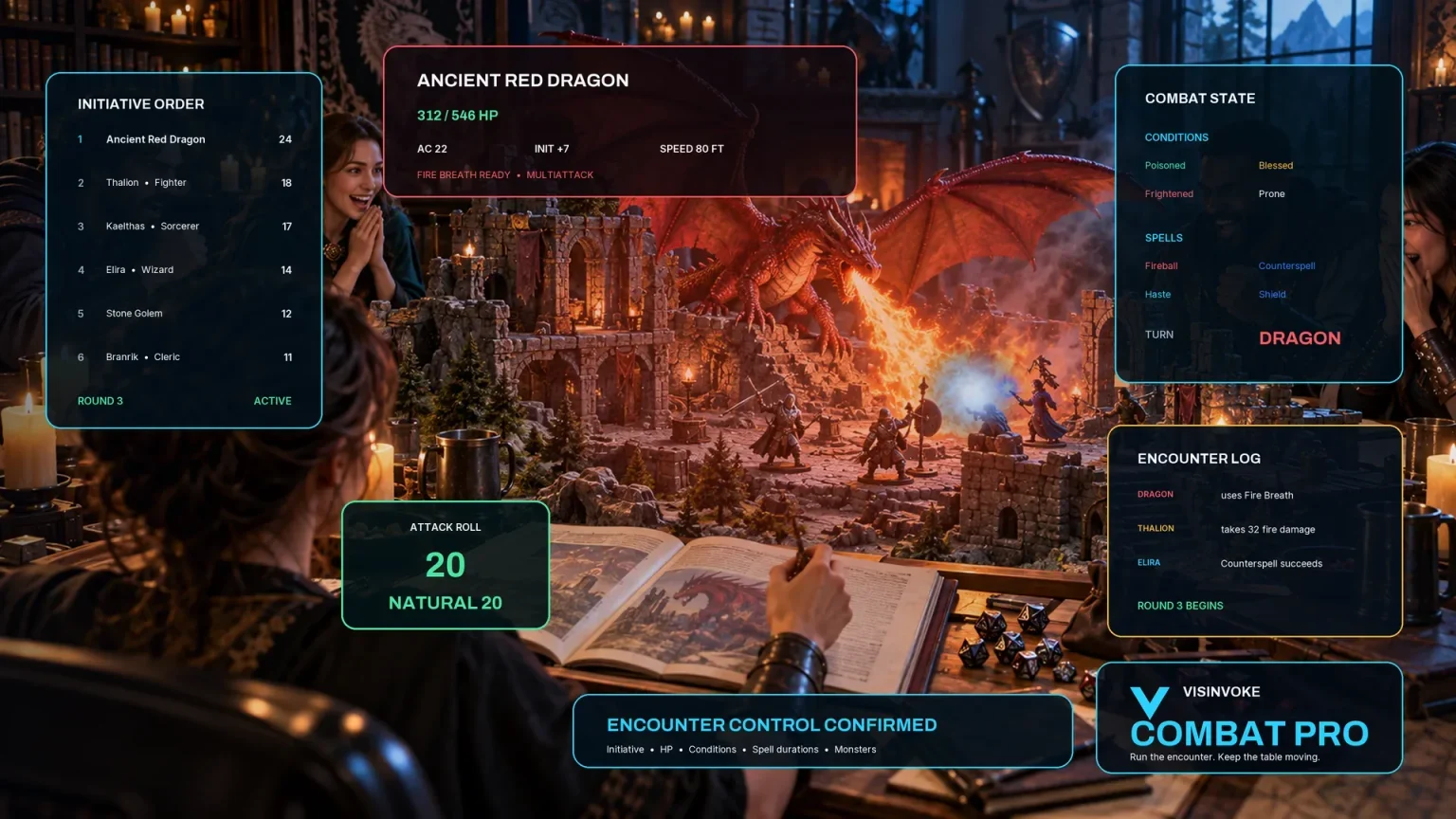
Review prepared opposition, tune creature statistics and run tabletop encounters with its own access.

Create focused character, monster, item and location images to complement your tabletop preparation.

Create guided commercial visuals for websites, brochures and wider creative projects.

Explore a separate futuristic RPG experience with its own world, characters and progression.
Product artwork illustrates encounter preparation, not application screens, creature stat blocks or generated graphical maps.
Quick answers
Understand the estimate and composition before opening the generator.
An opposition composition, a directional difficulty estimate, action-count and role summaries, contextual warnings and three count-based variants. It is encounter preparation, not an image generator, graphical battlemap or live combat tracker.
The numerical target uses party size, party tier, desired difficulty and current resources. Opposition threat is compared with that target. Other declared party and scene details provide context and warnings; it does not simulate every spell, ability, damage roll or player decision.
Yes. Enter opponent group names, counts, roles, tiers and relative threat values, then generate the comparison. Edit the composition and recalculate after changes. Automatic creature-library import and complete rules-specific stat blocks are not included.
No. Variants scale opponent counts, with rounding and a minimum count of one. A solo or small group can have the same count in more than one variant. Review the displayed composition and adjust your entered counts or threat values when you need a different comparison.
The selected prepared composition, opponent identities, roles and encounter context. Statistics need review and tuning in Combat PRO. A graphical map, live hit points, initiative, turns and damage are not transferred. Appropriate Combat PRO access is required for that optional handoff.
Create a free VISINVOKE account first. The generator is US$1.99 per month as one selected standalone generator, or can occupy a selected slot in an eligible generator pack. A free account alone does not include paid access. Get Desktop Command Centre from your account installer page and open the generator on Windows with the required entitlement.
Continue in VISINVOKE
Create a free VISINVOKE account first and choose the required generator access.
Get Desktop Command Centre from your account installer page. Sign in on Windows, then open Balanced Encounter Generator.